PadCanvas: drawing on my screen, with a lot of LLM wrangling
I’ve always loved drawing. It’s been a super important part of my life. At one point I wanted to go into design, but I’ve also always loved technology. So what better way to bring together two things I really, really love than building something that lets me draw all over my computer?
The childish doodles I would do while playing around and burning time, but on my actual screen. Ideally with a slightly more useful outcome than whatever was happening in the margins of my notebook.
A lot of my work involves explaining concepts to customers. Sometimes a little drawing makes something click much faster than another paragraph or another slide. I wanted to make those doodles come to life in front of people, in whatever application I happened to be using.
That was really the starting point for PadCanvas: turn a normal Mac screen into a shared canvas, and let people draw on it from an iPhone, iPad or browser.
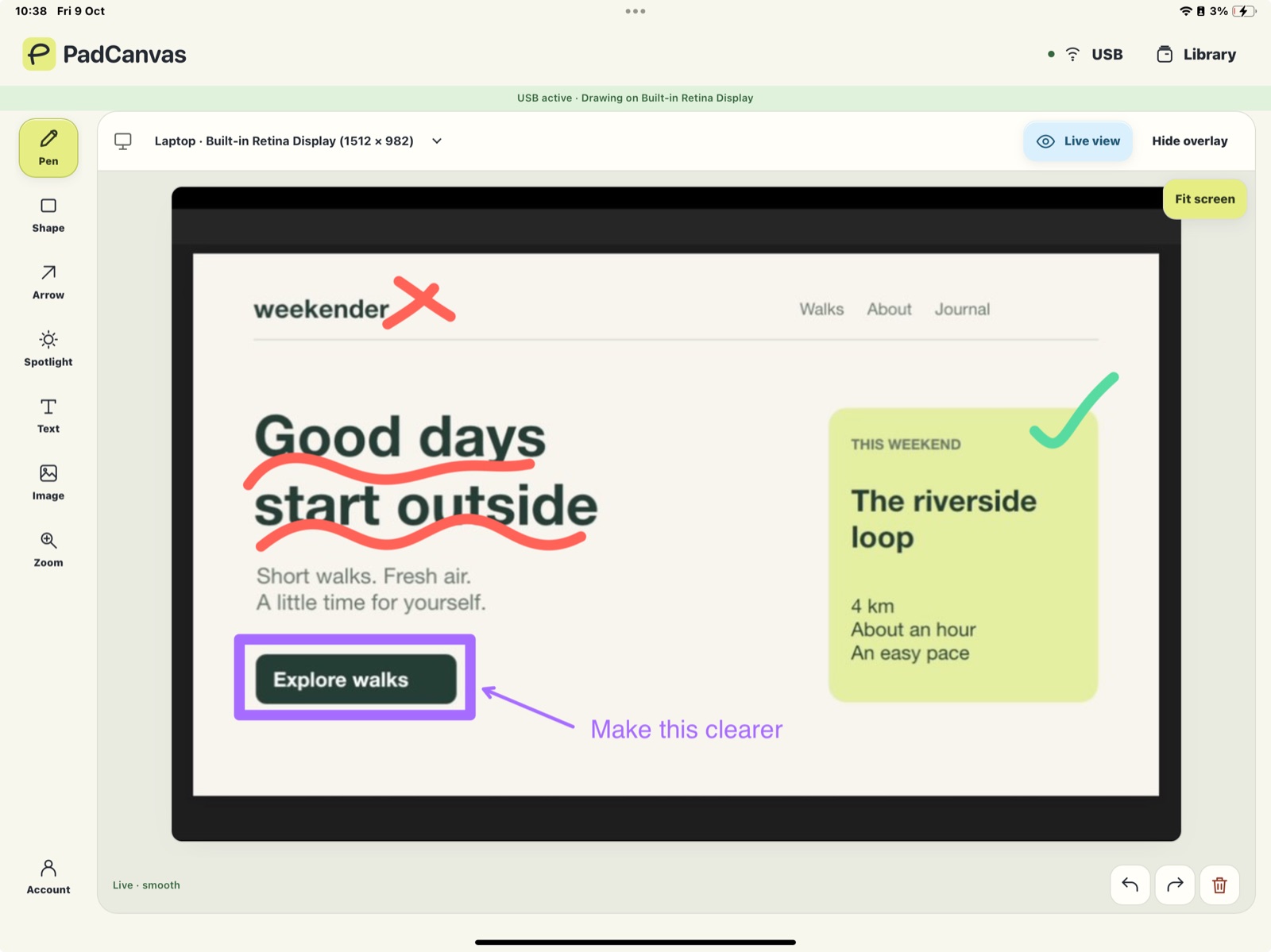
The actual app: drawing on a website from an iPad, with the marks appearing on the Mac.
I just wanted to draw on the thing I was already showing
Using a mouse is fine, but you’re concentrating on your laptop. You can’t really move around. Drawing with a trackpad also does very little for my confidence as an artist.
There are tools for annotating slides, tools inside meeting apps, and dedicated whiteboards. I’d searched for something that fit the way I wanted to work a few times, but never quite found it. I wanted to keep the application I was already using, pick up my iPad, and draw directly over it.
What if I just want to open up the screen, let everyone use it as a scratchpad, and capture the result to send to a customer afterwards?
That could make a presentation a lot more collaborative, informal and flexible. Especially when there are multiple people in the room and everyone has something to contribute.
I called it PadCanvas because I combined iPad and canvas. Like the genius that I am.
The name is already slightly questionable given that it works with iPhones and browsers too. If I eventually build Windows and Android apps, I’ll have made that problem even worse. For now, it works.
A playful idea, with quite a lot underneath it
The experience I wanted was simple: connect a device, choose a screen and start drawing. You can add ink, arrows, shapes, text and images, or use a spotlight to pull attention to a particular part of the screen. You can save drawings and projects to come back to later.
On the Mac, PadCanvas renders a transparent drawing layer over the selected display. The application underneath stays where it is. That means you can draw over a website, a presentation or a piece of code without importing it into another tool first. When presenting on a call, you share the whole display so the drawings are included too.
The Mac is the centre of the drawing session. Connected devices send drawing commands to it, and receive drawing state back. The companion also has an optional Live view, so you can see the Mac screen underneath your marks while drawing on your phone or iPad.
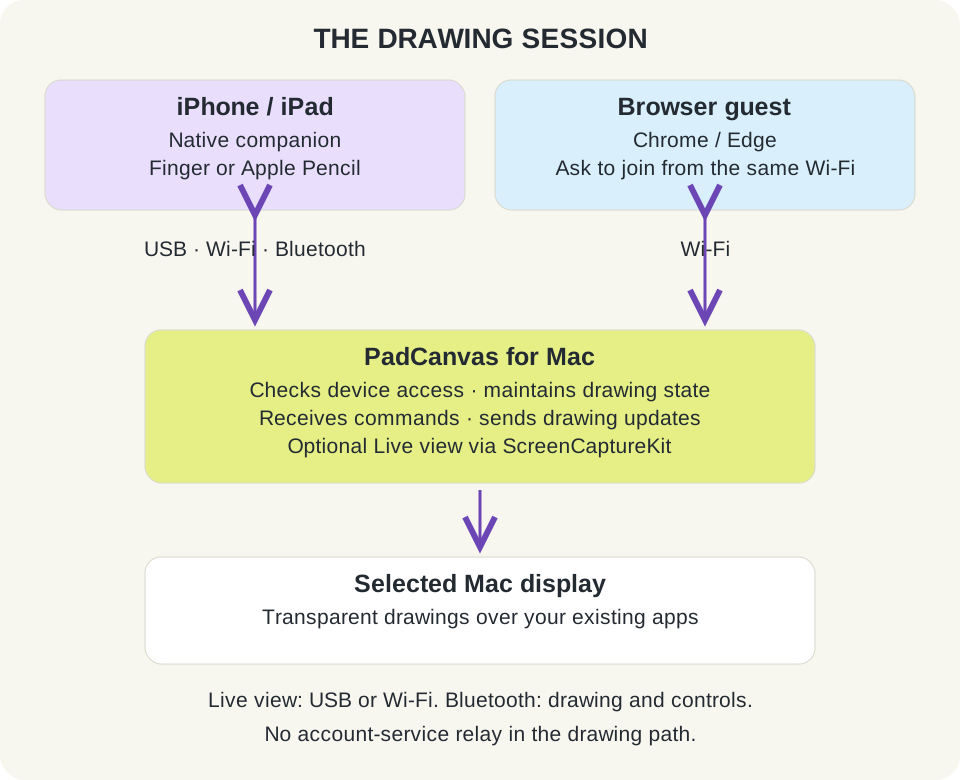
The drawing session lives on the Mac. Live view is a separate stream from the drawing commands.
There are a few technical details hiding inside that very simple description.
A small portrait phone and a large landscape monitor don’t have the same shape. The drawing surface has to preserve the proportions of the selected Mac display, so a circle around a button ends up around that button on both devices. Otherwise you’re collaborating on two slightly different realities.
Live view uses Apple’s ScreenCaptureKit on the Mac and needs Screen Recording permission. It’s optional, and it has a different bandwidth requirement from sending a stroke or an undo command. That distinction becomes quite important when you start looking at connections.
USB, Wi-Fi, Bluetooth. Pick your complication
Connectivity was one of the trickiest parts of this.
There’s no single connection method that’s the correct answer for every room, every device and every person. So I put several options there, then had to work out how to make that feel accessible rather than overwhelming.
| Connection | Why have it? | The trade-off |
|---|---|---|
| USB | Drawing and Live view without relying on the room’s Wi-Fi | You need a cable, and you’re physically attached to the Mac |
| Wi-Fi | Move around while drawing, with Live view available | Both devices need a reachable local network; some guest networks isolate devices |
| Bluetooth | Send drawing and control messages without joining Wi-Fi | It doesn’t carry Live view or imported images |
| Browser | Let someone join from Chrome or Edge without installing the companion | They need the same reachable local network and approval on the Mac |
Bluetooth is a good example of why these differences need to show up in the product. Sending a drawing command is a much smaller job than continuously sending screen images. Treating those as interchangeable would create an experience where something looks available but doesn’t work properly.
The implementation uses Core Bluetooth, with messages split to fit the available packet size and flow control so the sender doesn’t overwhelm the connection. Wi-Fi and Bluetooth also have authenticated, encrypted application traffic. Being in the same room, or on the same network, shouldn’t mean someone automatically gets access to your screen.
For new Wi-Fi and Bluetooth connections, the Mac lets you check and allow the device. USB uses a code entered on the Mac. Browser guests enter a name and ask to join; opening a connection link on its own doesn’t give them permission to draw.
There’s a lot of detail behind “connect your phone”. The person using it should mainly need to know what to click, whether it worked, and what to do if it didn’t.
A huge, huge case of LLM wrangling
The LLM did most of the implementation work. I want to be straightforward about that.
Having these tools available made me think: why not actually build the application I’ve wanted for ages? I could work through the idea, try it on real devices, and keep changing the bits that didn’t feel right.
But getting an LLM to produce code is only part of it. I spent a lot of time wrangling it across the different devices, connection methods and UX decisions. A behaviour can make sense on an iPad and feel awkward on a phone. A connection can technically work while still being painful to set up. A helpful explanation can become a wall of text that nobody wants to read.
I kept coming back to ease of use. If that’s part of the reason for building this, I can’t then expect someone to learn a networking vocabulary just to draw an arrow.
One person I kept imagining was a random teacher in a random classroom in the middle of nowhere. They want a few students to draw on the screen together. The iPad and pen could make that a really delightful experience. But the connection flow has to make sense to that teacher, in that room, on whatever network they have.
That image was useful for making decisions. Would this explanation help them? Would they know what to do next? Would a student be able to join without turning the lesson into technical support?
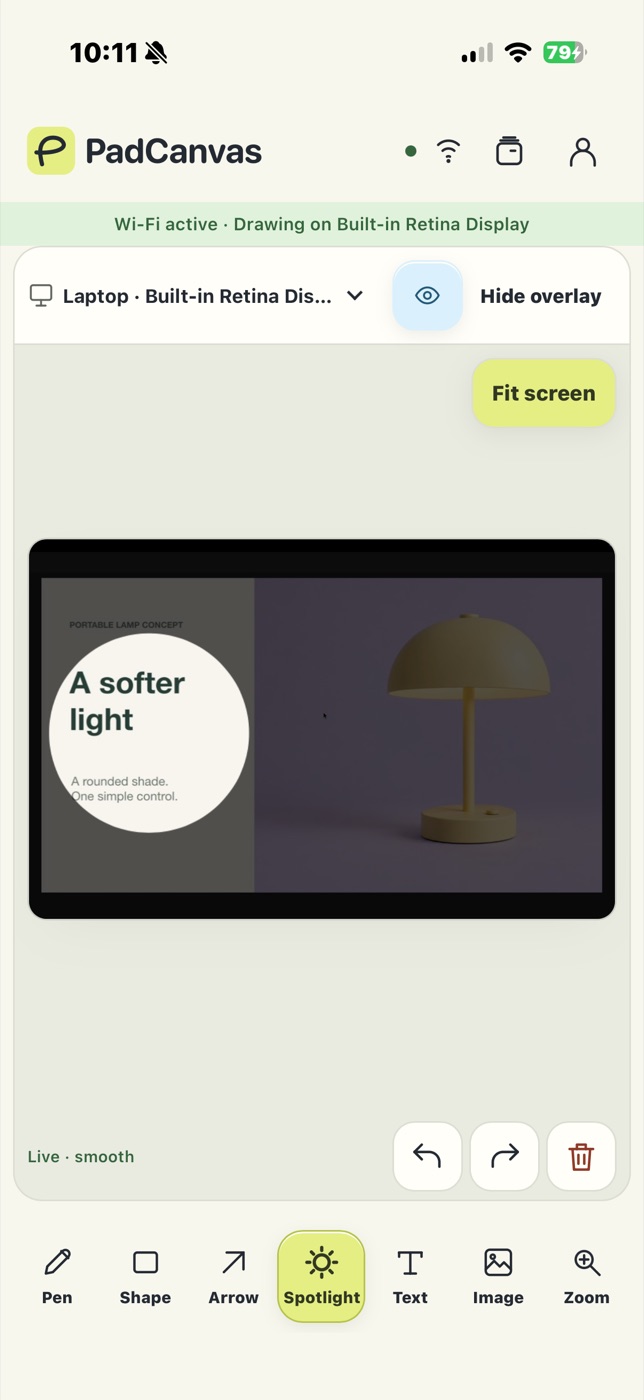
The phone experience has to make sense on its own too. Here, Spotlight keeps attention on one part of the presentation.
The drawing and the account are separate jobs
The drawings travel directly between connected devices and the Mac. They don’t need to take a trip through the account backend.
There is still an online part: authentication, checking access and billing. Supabase handles authentication and the database, Cloudflare Workers runs the account service, and Stripe handles checkout and subscriptions.
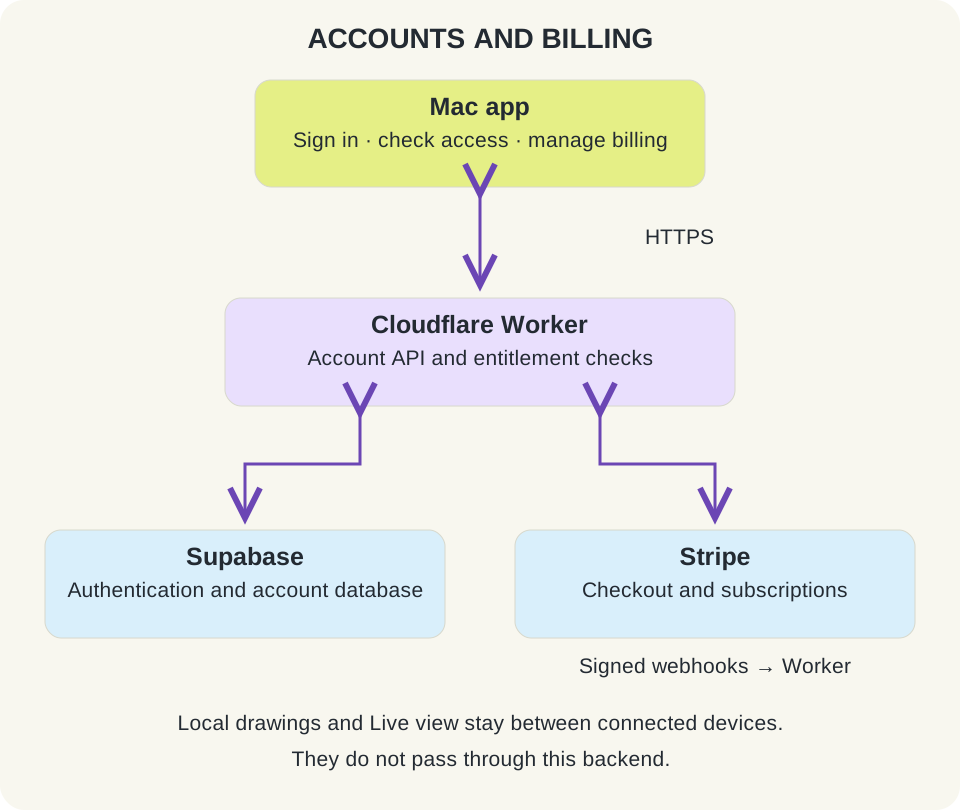
The backend deals with accounts and billing. The local connection deals with drawings and screen preview.
I started with Vercel and moved the hosted service and site to Cloudflare. For this project, the pricing made more sense to me. When you’re thinking about charging roughly a fiver a year, you do start looking quite closely at what you’ve signed yourself up to maintain.
Billing also adds its own technical work. Returning from a successful checkout page can’t be what grants access. The backend needs to verify the payment or subscription state, process Stripe’s signed webhooks, and then tell the Mac what access the account has.
The devices joining a drawing session don’t need to manage any of that. A browser guest can ask to draw without creating an account, and the person running the Mac manages the subscription.
About a fiver a year
The model is a seven-day free trial, then £4.99 a year. The trial requires a payment method; you can cancel before it ends to avoid the first charge. The iPhone and iPad companion is included with the Mac plan.
I wanted people to have time to play around with it and see whether it’s useful. After that, the price is basically me making the assumption that this is something I’ll maintain over the long term.
If I get 100 paying users, that’s roughly £500 a year before fees and costs. It’s not much. I’m not sitting here with an elaborate monetization strategy. I’m mostly asking myself what would be a fair price for something like this.
I’ve paid for a simpler tool in this space before, so I do have a sense of what I’d personally be happy to spend. I think this is a bargain if it makes even a few presentations or lessons more enjoyable.
Maybe a lifetime option makes sense eventually. I’ve thought about it, but it’s a thought rather than an offer. For now, I’d rather see whether people enjoy using the thing.
Where it is now
I’ve shown PadCanvas to my team and a few friends. I haven’t rolled it out broadly yet, so I don’t have a lovely graph of user growth or a collection of classroom success stories to put here.
The outcome so far is that the thing I wanted exists. I can draw on my Mac from another device, show what I mean, and invite other people into that process. I’m quite proud of that.
I’m sure wider use will uncover plenty of rough edges. Different networks, different devices, different expectations. I’ve already had a request for an Android app. Browser access covers some of that use case today, but a native Android version, and eventually Windows, are things I’d like to explore.
For now, the Mac app needs an Apple silicon Mac running macOS 14 or later. The native companion supports iPhone and iPad on iOS or iPadOS 16 or later. Check the download page for the current companion availability.
I’m super excited to bring this to the world. I think there’s something quite lovely about making everyday work a little more creative, a little more collaborative, and a lot more enjoyable.
If you try it, I’d love to hear what you’re using it for, what feels good, and what gets in the way. Especially the things I haven’t thought of yet.